
Gmail vs Outlook vs Groove for Customer Support: Which Provides the Best CX?

Struggling to keep track of all your customer inquiries? Need a more robust way to handle support?
Your customers’ experience will depend heavily on the tools you use. Those tools will either make it easy to provide quality service efficiently, or put roadblocks in your path.
So what’s the best email platform to use? Let’s take a closer look at what traditional platforms like Gmail vs Outlook offer for customer support. Plus, we’ll explore a third option that goes above and beyond – while minimizing added complexity and cost.
Organizational Features
Clear, consistent organization is a must in customer service. Without it, messages get lost, agents get confused about who’s responsible for what, and inquiries aren’t responded to in order of priority.
Organizing Your Gmail Inbox
Gmail allows for organization beyond the default view. Let’s say you need to view ‘priority’ emails at the top of your inbox, or track messages that require a follow-up response. Does Gmail allow you to do that?
Yes, to an extent. The best way to keep your inbox organized is to head over to Settings, and filter by inbox type. There are a number of options here. “Unread first” and “Starred first” are self-explanatory, so let’s focus on “Importance” and “Priority”:
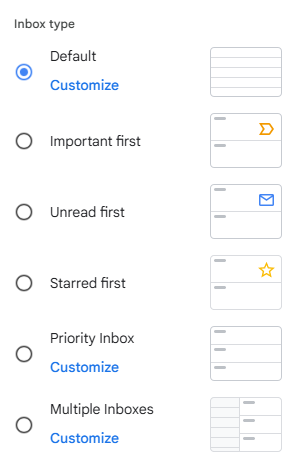
Important first means Google will use its own prediction tools to flag emails based on importance or urgency, and assign them a yellow marker icon. All other emails will fall below those:
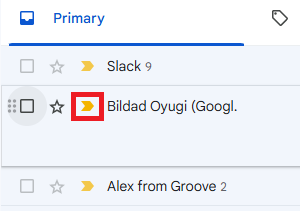
These messages are automatically marked for importance based on previous history — the people you email most often, high-volume keywords, and emails you’ve ‘starred’.
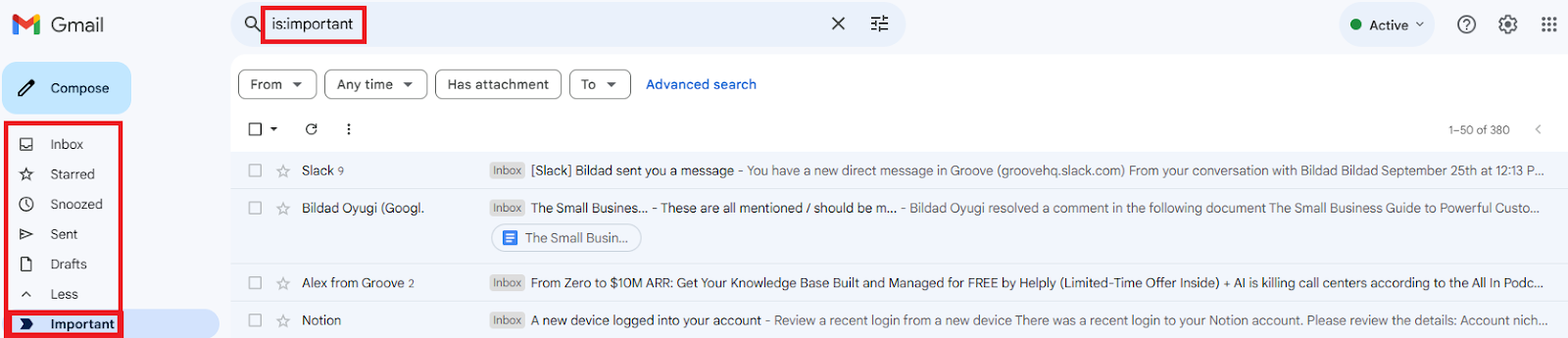
You can see why an email was marked as important by hovering over the marker, and look for them by searching “is:important”:
Priority inbox means that Google learns what kind of emails you tend to interact with the most (such as high-priority customers or time-sensitive problems). Then it pushes them to the top of your inbox.
This is great for businesses looking to leverage Gmail for customer support. But it’s still a bit of a gamble on what gets prioritized. When you select this inbox type, Gmail segregates emails into separate sections, highlighting unread emails marked as important:

Using Labels in Gmail
Gmail is ultimately a label-based system. You can think of labels as ‘tags’ you can attach to specific emails you want to organize or track. You can color-code labels, and add more than one to an email.
To create a new label, you’ll need to scroll down to the bottom of your label list and click on the ‘plus’ icon. You can also create ‘nested’ labels:
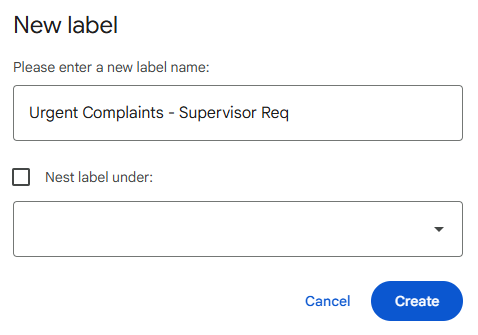
Selecting the “Label” icon when viewing an email will allow you to assign a pre-existing label. Within this same drop-down menu, you’ll also be able to create a new label and assign it right away:
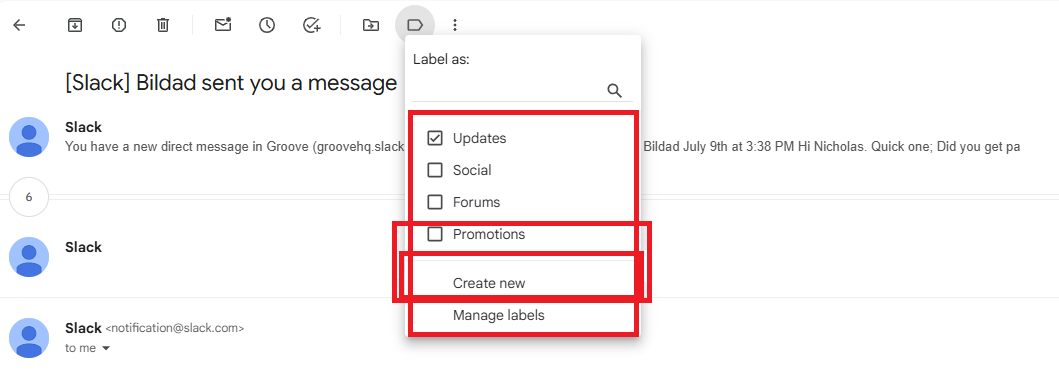
You can also automate this process, and have Gmail apply labels to emails as they come in, by creating a “Filter” and adding “Folders”.
As for assigning emails to a specific teammate, Gmail is not as helpful. Normally, you’ll need to dig through and forward each message to the appropriate person. This isn’t a problem if you’re an entrepreneur managing your own customer support, but for teams with even a few support agents (and addresses) things get messy fast.
Organizing Your Outlook Inbox
If you opt for Outlook, you’ll primarily be using folders and subfolders to organize your inbox. “Flagging” an email in Outlook is comparable to “Starring” in Gmail, to highlight it or prioritize that message:

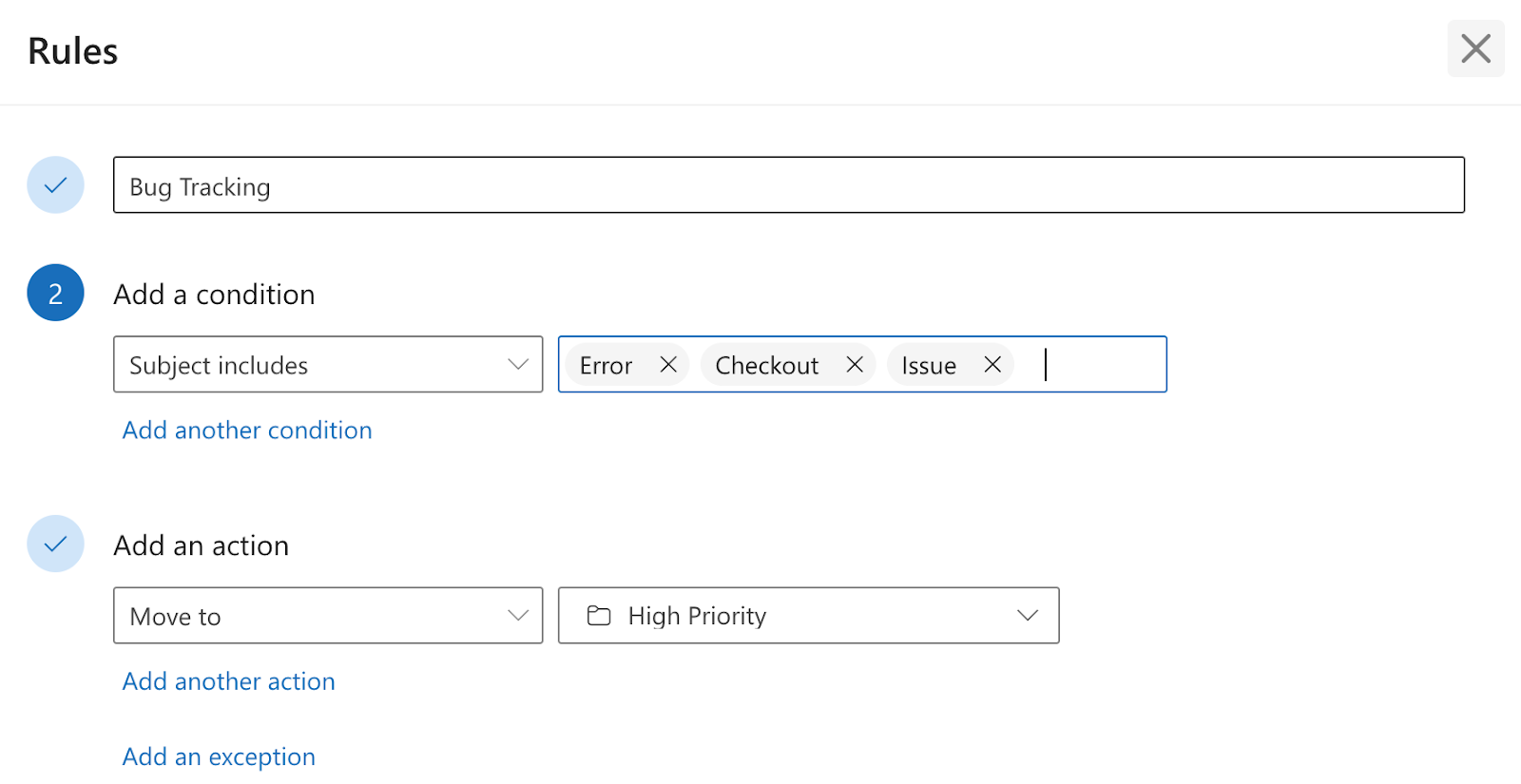
Similarly, while Gmail uses filters to sort emails, Outlook relies on “Rules” to automatically sort them into categories and subfolders. These rules can be complicated or simple, and custom-built:
Categories, on the other hand, visually organize your inbox:
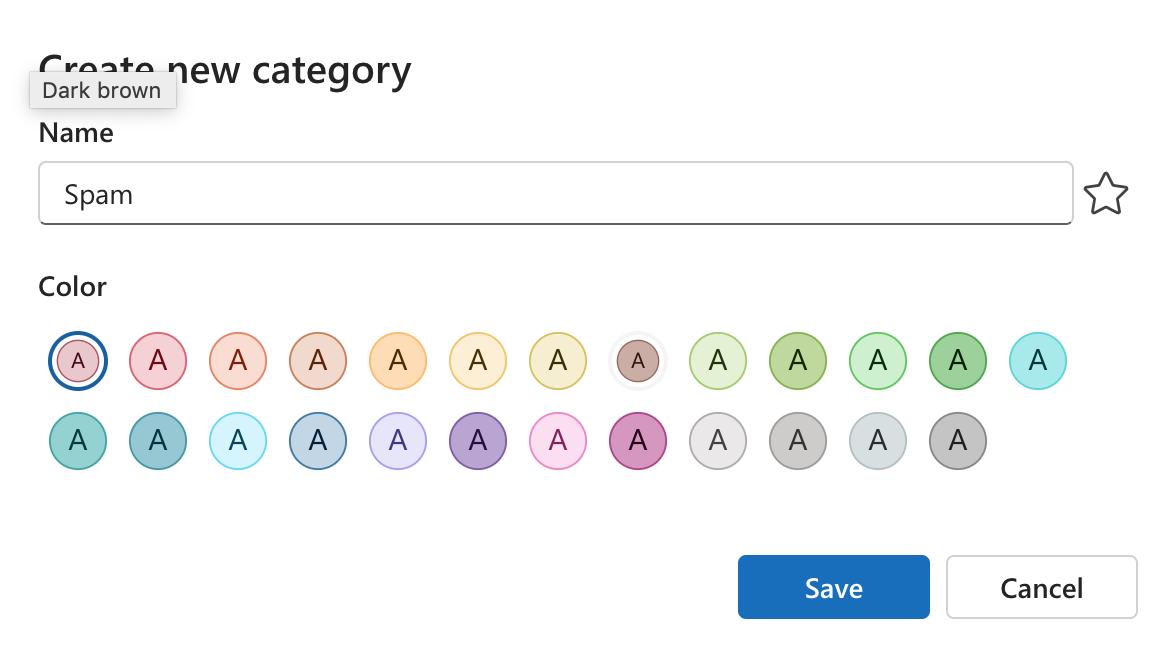
You can create “Categories” directly within an opened email, or by selecting the gear icon. You can edit a category, change its color, and so on. You can then apply a category to an email under Tags > Categorize:
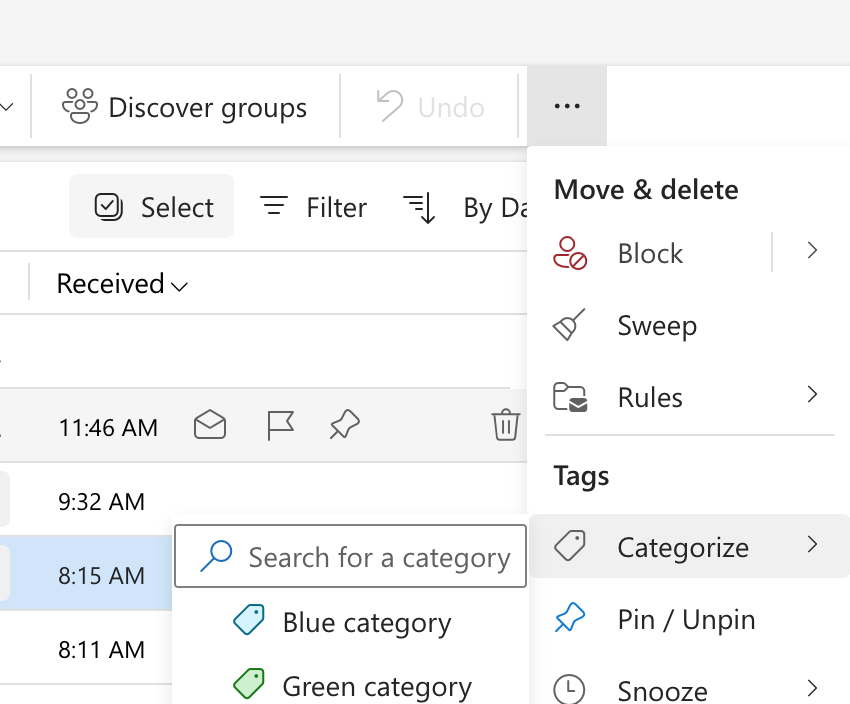
Overall, the options are fairly basic. But they’re serviceable for simple organization and prioritization systems.
Organizing Your Groove Inbox
Plenty of businesses still depend on traditional email to deliver support. It’s the simplest and cheapest option.
At the same time, Gmail and Outlook aren’t designed for customer service. They can be adapted to that use, as we’ve seen so far (and will continue to illustrate). But they have significant limitations.
What’s the alternative? You might fear that to move away from these platforms, you’ll have to opt for something complicated, hard to learn, and pricey. But that’s not necessarily the case.
A help desk is a dashboard built specifically for customer support. It offers features designed to help you build workflows, save time, and provide high-quality service. And it doesn’t have to be expensive, or only accessible via a steep learning curve.
Groove is our purpose-built help desk software. It was created for small businesses that want to transition away from Gmail or Outlook, without making their lives more complicated or breaking the bank. You can set it up and hit the ground running in minutes.
With that in mind, let’s see how Groove compares to Gmail vs Outlook for customer support organization.
Using Smart Folders in Groove
Thanks to the way Groove is built, you’ll face less hassle trying to organize your inbox so it’s optimized for customer support. We’ve already done most of the hard work for you.
With that being said, you’ll still want to organize your inbox around specific types of conversations or priority levels. This is done via “Smart Folders“.
To get started, you just have to head over to your Groove Settings. From there, you can give a name to your smart folder, and determine what conversations you want included.
Smart folders work in sync with “Tags”. Let’s say you want a folder containing all customer inquiries that mention checkout page problems. First, you’ll want to set up your tags:
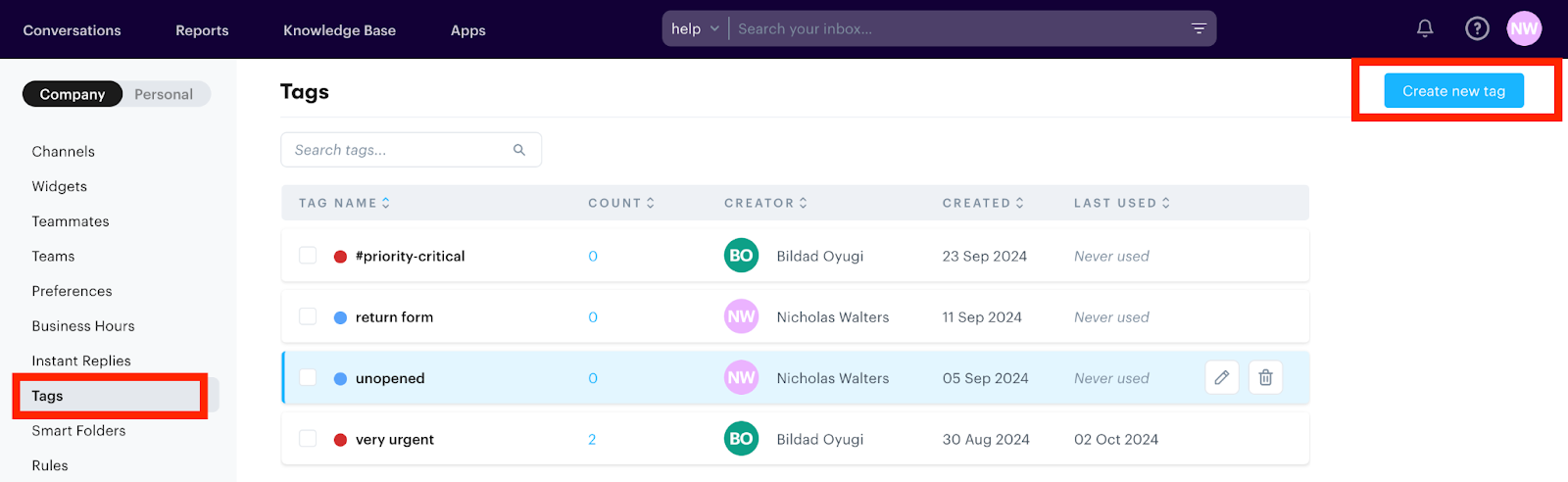
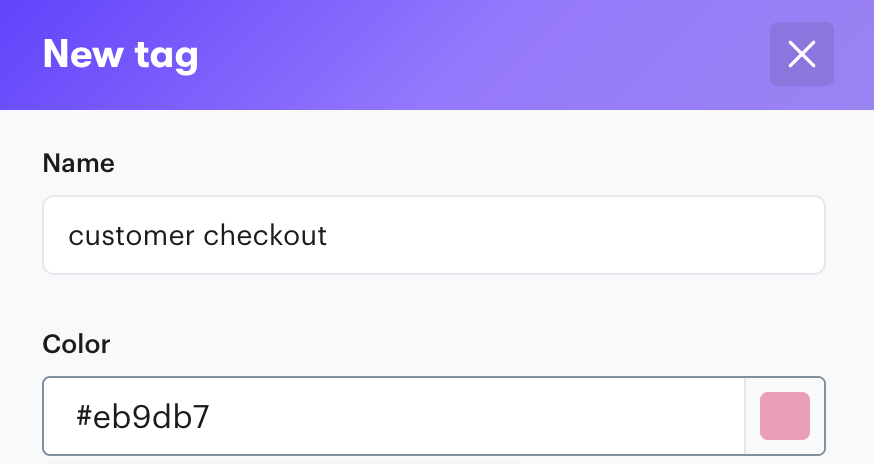
Tags are super streamlined in Groove, so you just have to add a name and color-code them. We’ll create a tag called “customer checkout”:
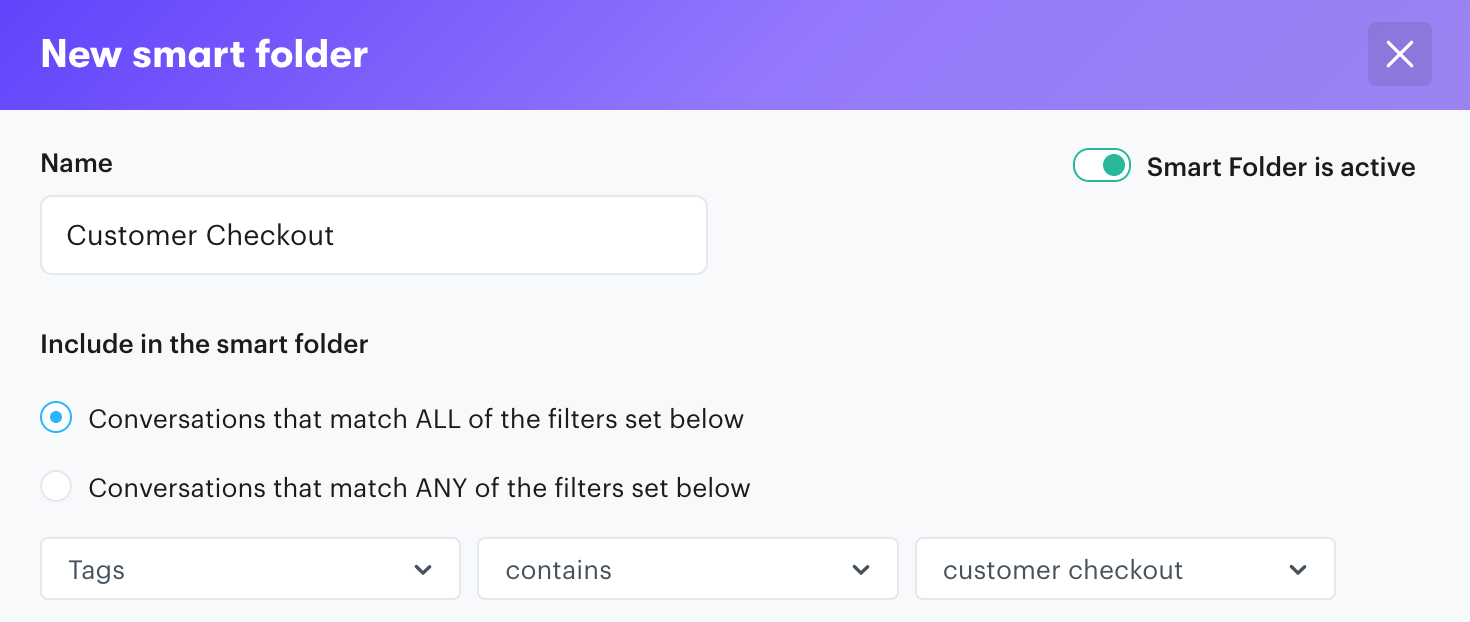
To create a folder to filter all these checkout emails, we’ll name it “Customer Checkout”. Then we’ll select any “Open” conversations tagged with “customer checkout” so they’re included:
If you’re worried about having to manually add tag to every email, don’t. Automation features found under Rules automatically sort all emails based on keyword filters.
For example, you can have any email message that contains “checkout” in the title or body of the message automatically tagged and sorted into the new folder. As an added benefit, that tag data gets tracked in your Reports dashboard, so you can keep an eye on what inquiries are most common.
User Interface and Ease of Use
Consider how much time your team will be spending with these tools. Every day, you’ll depend on them for communication with all of your customers.
As such, we recommend prioritizing a user interface that is easy to navigate. It should enable your team to adapt as quickly as possible, and provide minimal barriers to their daily work.
When comparing Gmail vs Outlook for customer support, the layouts are very familiar, and both have their pros and cons. As a personal email tool, most people don’t play around with the UI much, beyond basic theme and color changes.
In comparison, a help desk is built specifically for customer service. So the features you need to access tend to be more readily accessible. You won’t have to do a ton of tinkering to get the system up and running for customer support.
Gmail’s User Interface
Gmail provides a clean, easy-to-navigate interface. In general, finding your way around it won’t be a problem.
You can switch between emails and meetings without needing to open a new tab or window. As we mentioned earlier, Gmail tends to organize based on labels, tags, and categories:
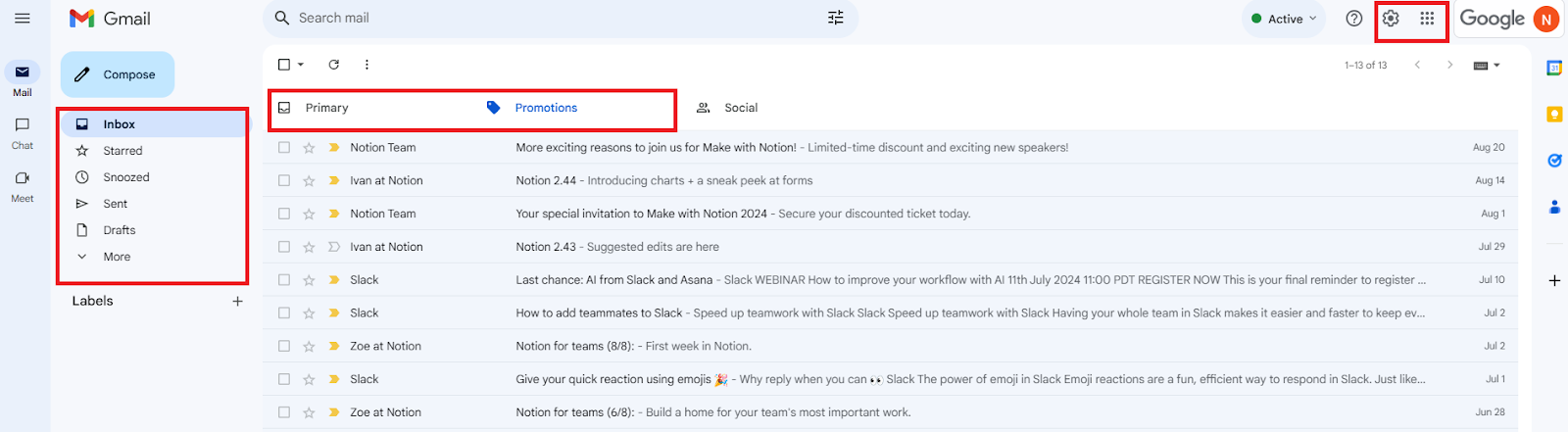
You can readily change the appearance and layout from the Quick Settings option.
In default view, your inbox is separated into three categories: primary inquiries, social (social media updates), and promotions (marketing emails or feature updates). On the left side, under the button to compose an email, you have access to starred emails, sent items, drafts you’ve created, and labels.
Outlook’s User Interface
Outlook’s UI offers more depth and customization options. At the same time, some people like it less because it feels more cumbersome. These negative sentiments have only grown over the years.

With Outlook, there’s a tradeoff between accessibility and customization. A freelancer will probably be able to jump into Gmail a lot faster if they work solo. On the other hand, a small business may prefer Outlook for its integration with the Microsoft 365 suite.
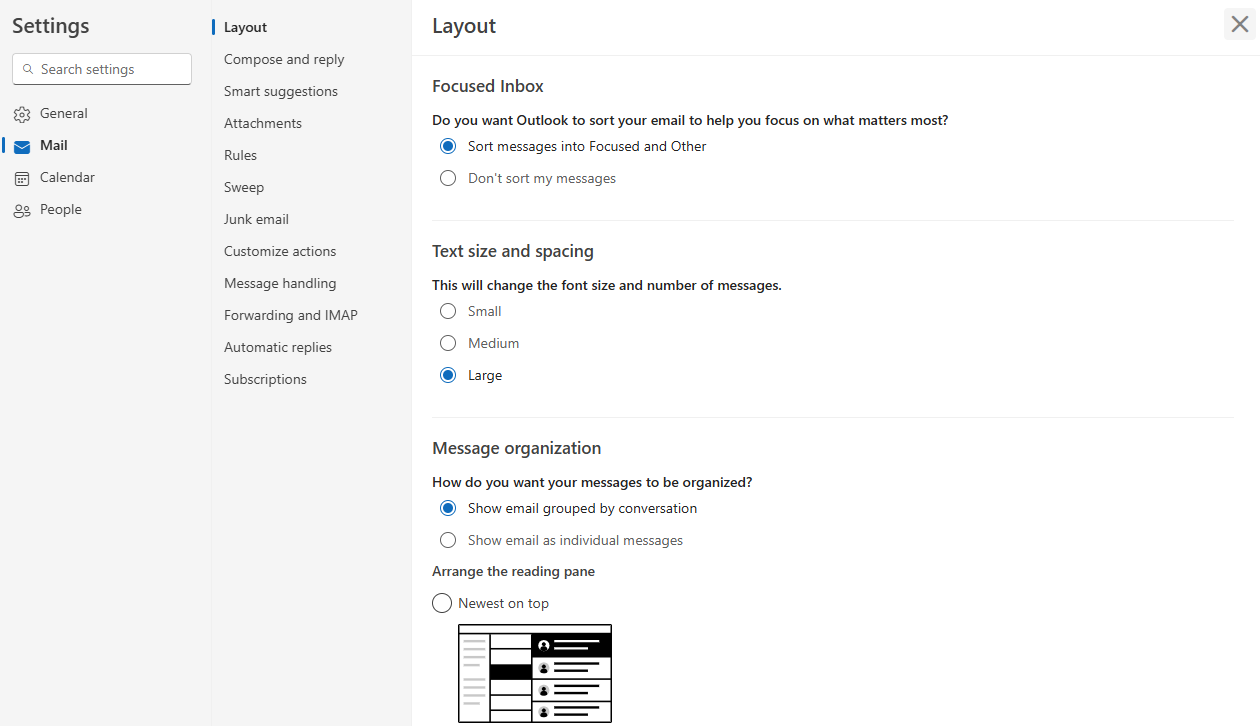
Still, Outlook is reasonably navigable and not that hard to use. It’s just a bit more cluttered and less intuitive, which does make a difference when you’re using it every day.
For a closer look, Lea David has a handy, in-depth guide for getting the most out of Outlook’s interface.
Groove’s User Interface
Groove’s interface should feel familiar and comfortable, right from the start. If you’ve used traditional email platforms, it won’t take much getting used to. And that’s good, because a help desk shouldn’t be a hassle to navigate.
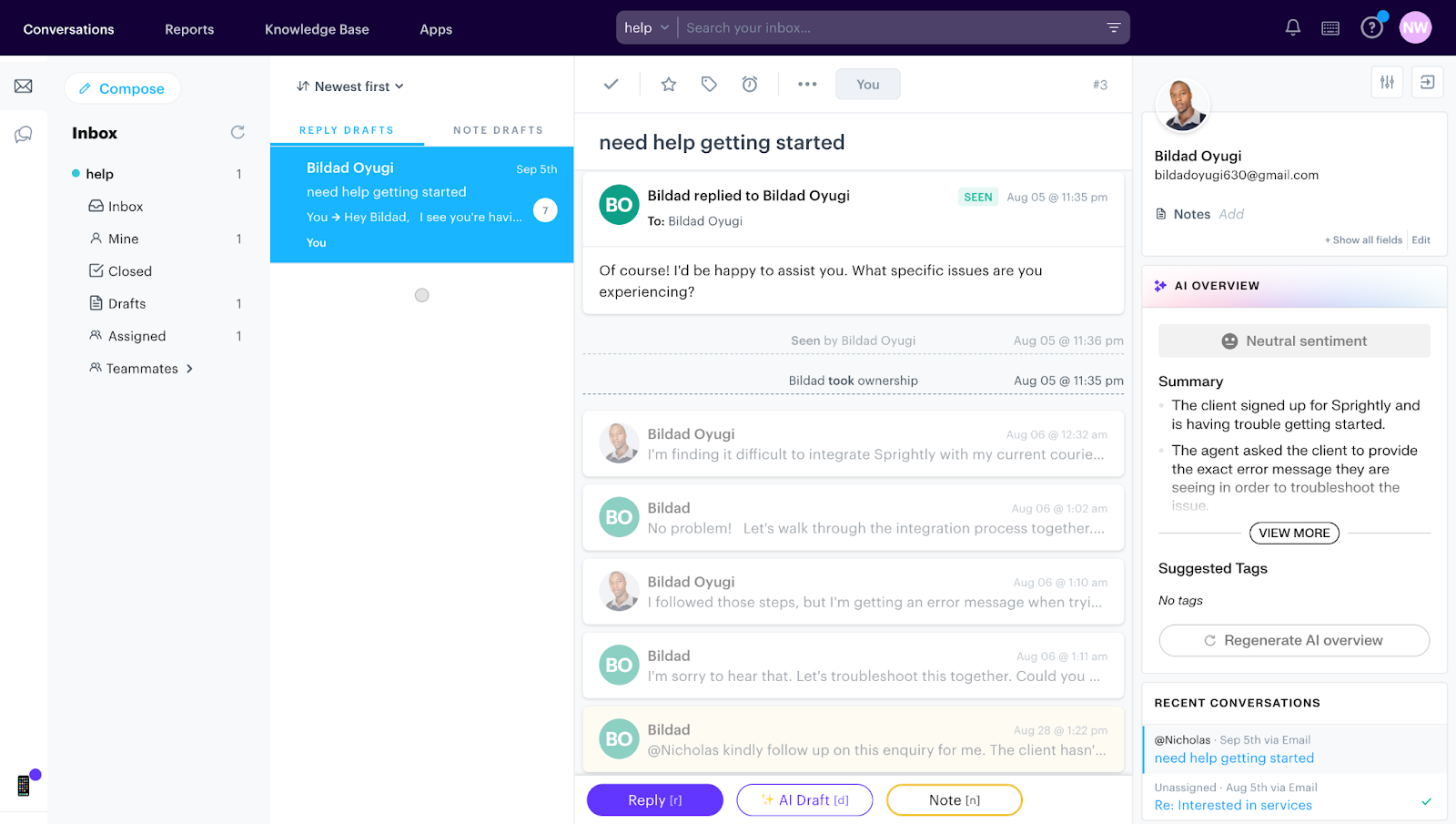
Customer inquiries are funneled into a collaborative shared inbox. You’ll set up email routing right at the start. You can then add additional channels (Facebook, Instagram) via the Apps option in your dashboard:
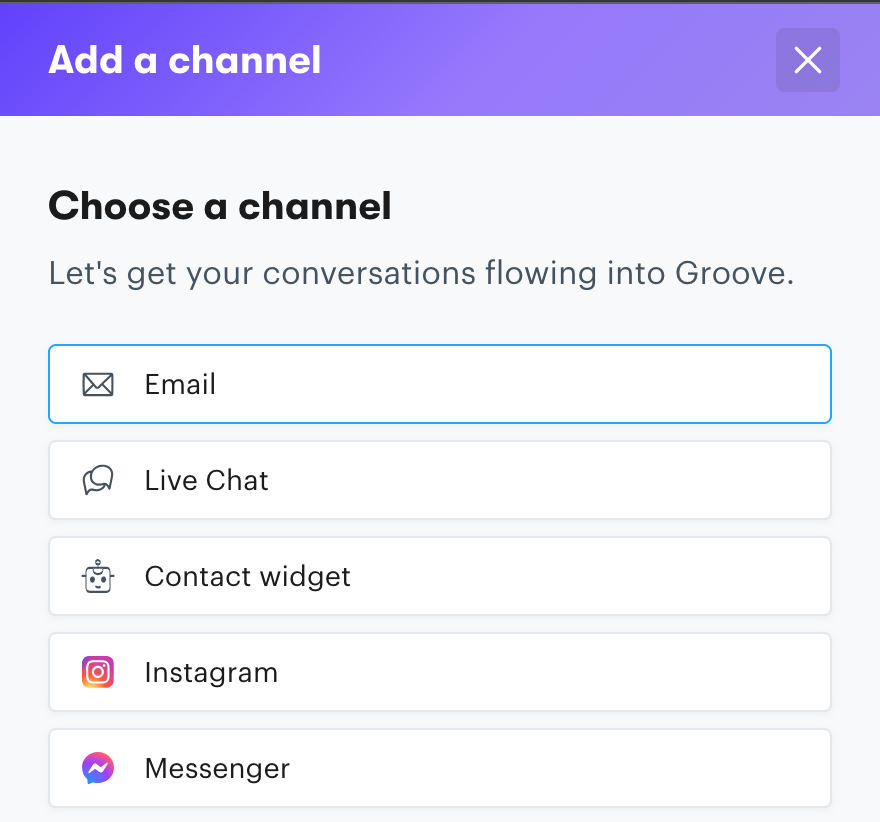
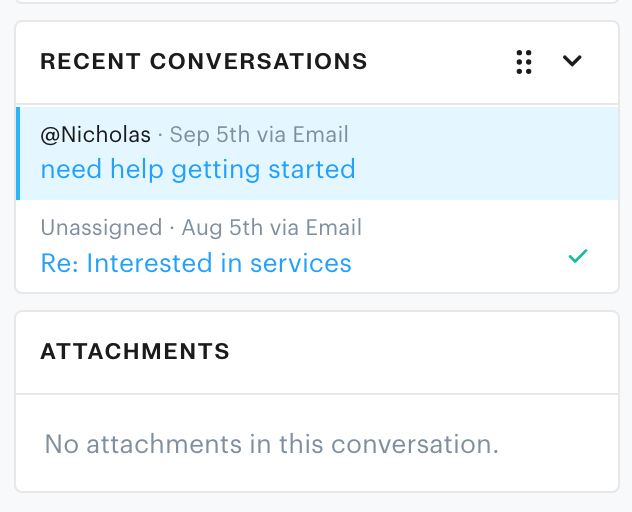
While it houses plenty of features, there isn’t a lot of clutter. For example, customer profiles are kept neatly to the right-hand side in a panel with prior conversation history:
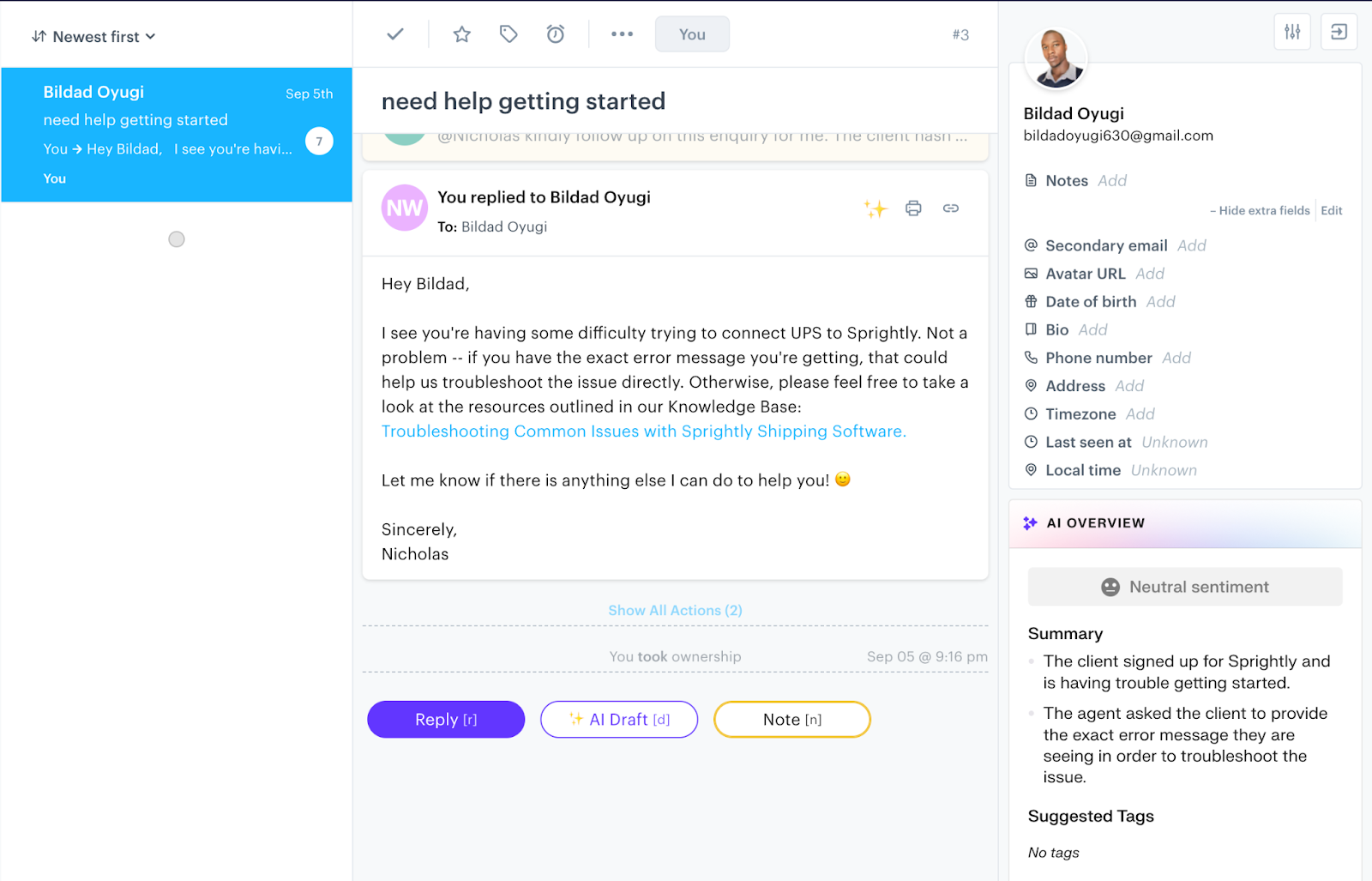
You can track the entirety of a customer’s support experience without digging through old emails:
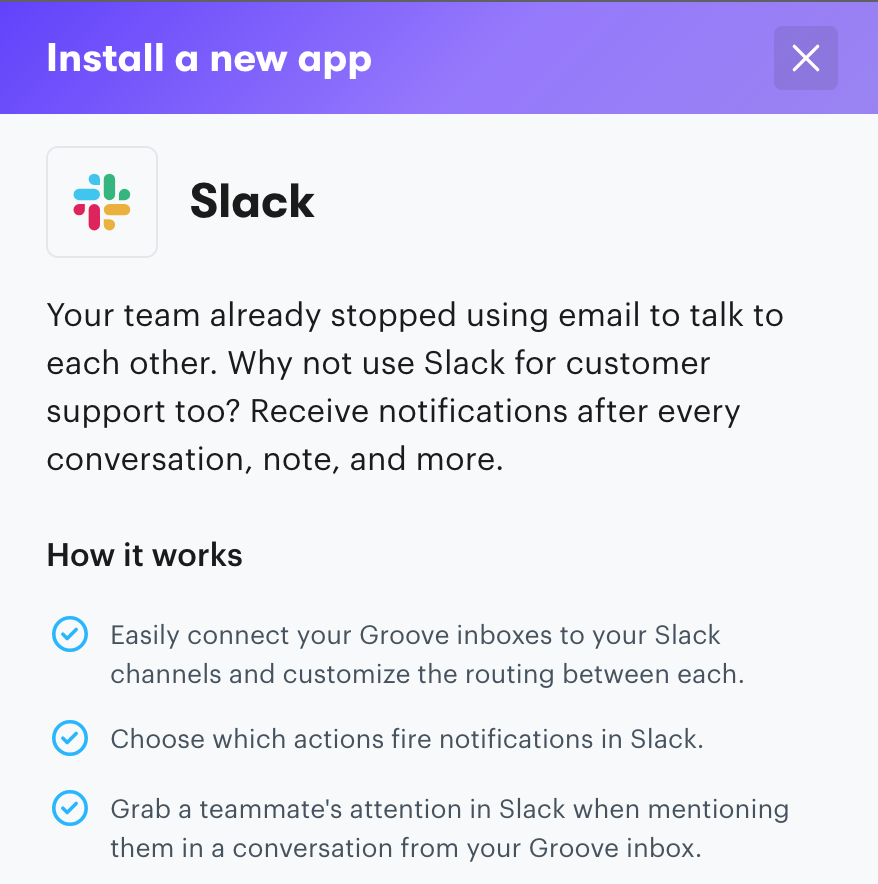
If you need to add integrations with other workflow tools, like Slack, this can be accomplished in a matter of minutes. Contextual guidance walks you through the setup process for any feature, app, or tool while in Groove:
Finally, data for metric tracking is easily accessible from the main dashboard under Reports. We’ll get into the detailed customer support reporting features of Gmail vs Outlook vs Groove next.
But in terms of accessibility, the priority is on clear, concise information. You won’t need to drill numbers into an Excel spreadsheet to understand how your support team is performing.
Tracking and Reporting Customer Service Metrics
While the backbone of great customer service is human personalization, you’ll need trackable data to measure the overall health of your support. Without concrete numbers on ticket volume or resolution time, you won’t be able to create an attack plan for improving customer satisfaction.
Gmail’s Reporting Features
Unfortunately, Gmail has limited reporting features. You won’t be able to track customer service metrics like first response time or average resolution time.
You should also consider that, unlike a help desk, most email systems don’t look at cross-channel communication. By this we mean you won’t be able to leverage insight from other communication channels within the Google Workspace.
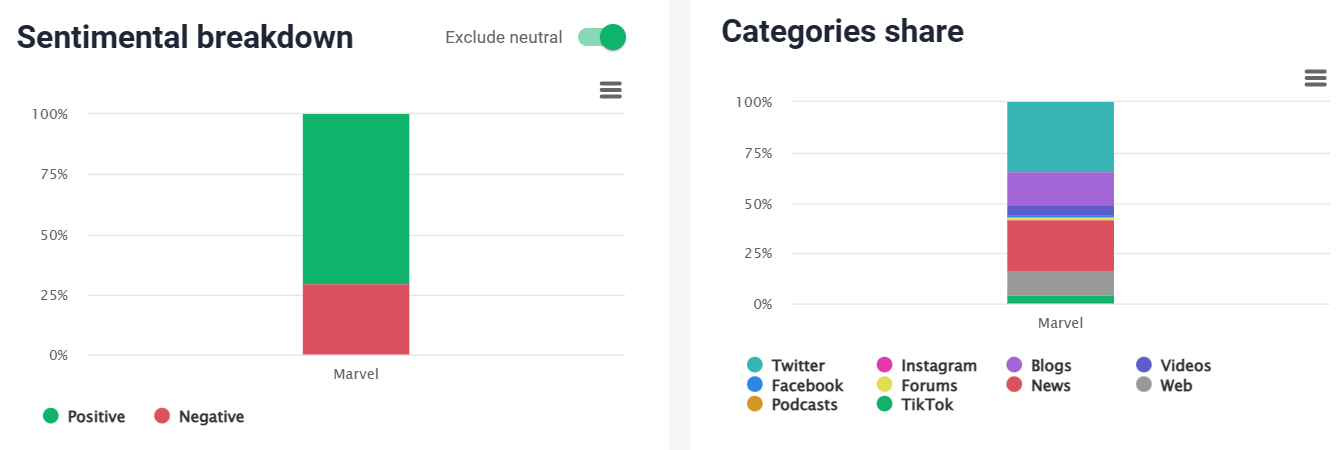
Data from Facebook, Instagram, etc. will not reflect within Gmail. You’ll need to use a separate tool like Delighted or Brand24 to assess sentiment from these channels:
Native Gmail analytics focus on very basic metrics like emails sent and received. Gmail also tracks searches and drafts — but these hardly offer insights into the customer experience. Instead, they’re used by Google to personalize your inbox experience.
Outlook’s Reporting Features
Similarly, Outlook does not offer detailed built-in analytics or reporting features for tracking customer service KPIs.
However, it does offer more advanced reporting capabilities than Gmail, thanks to an add-on called Microsoft Viva Insights. Insights tracks a handful of metrics like document open rates, but it primarily functions as a productivity tool:
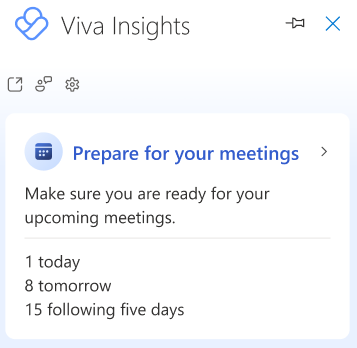
It also won’t be relevant for most small business. You can’t gain insight from Insights (pun intended) if an email is sent from a shared inbox or if you sent it to less than 5 people. Therefore, this sort of tracking only appears relevant for monitoring email campaigns or internal communication.
There are plenty of affordable third party tools that integrate with Outlook, like the 4n6 PST Reporter Tool. Tracking the top senders and recipients, total emails received, sent, etc. is helpful for getting an overview of basic statistics.
But this still doesn’t provide actionable insight into support team performance. Nor does it reveal customer satisfaction.
Groove’s Reporting Features
In comparison, any quality help desk should offer an easy way to view customer service performance. Within Groove, this is all housed in your Reports dashboard:
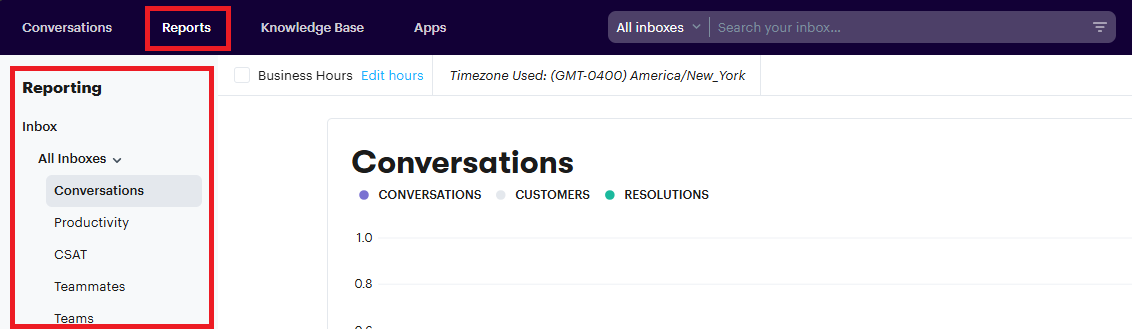
Most of the customer service metrics you’ll need to track are easily accessible within a few clicks.
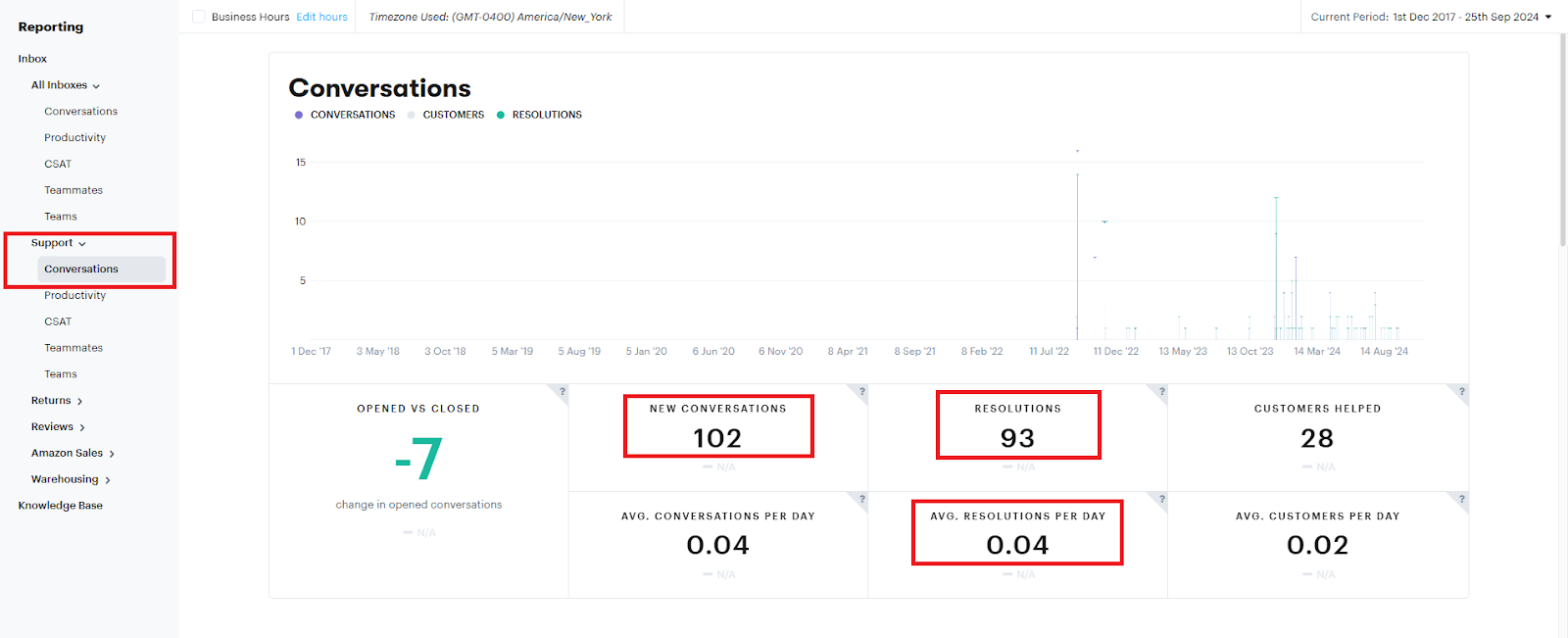
“Ticket volume”, which measures the total number of tickets inside your inbox, is displayed under Conversations. This is a broad metric, but is important to track after major changes in customer support:
You’ll also find more granular metrics like “average resolution time” and “average first response time”:
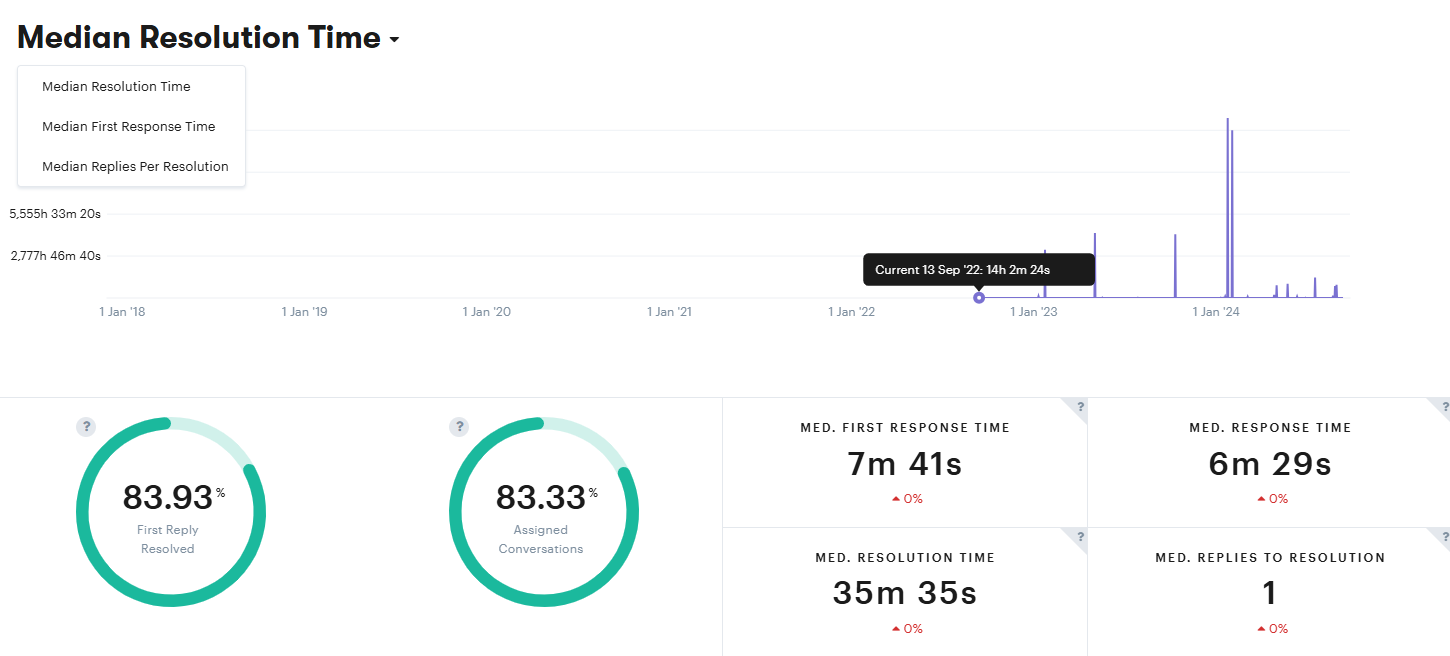
These metrics help you see how long it takes for your support team to completely resolve an issue, or first respond when a ticket is received. You can investigate further based on problematic trends.
Another option at your disposal is CSAT (Customer Satisfaction) surveys. These are automatically sent out after your team resolves a ticket. The customer will be prompted to respond with a rating. They can elaborate on why they chose that rating for qualitative insight into support performance:
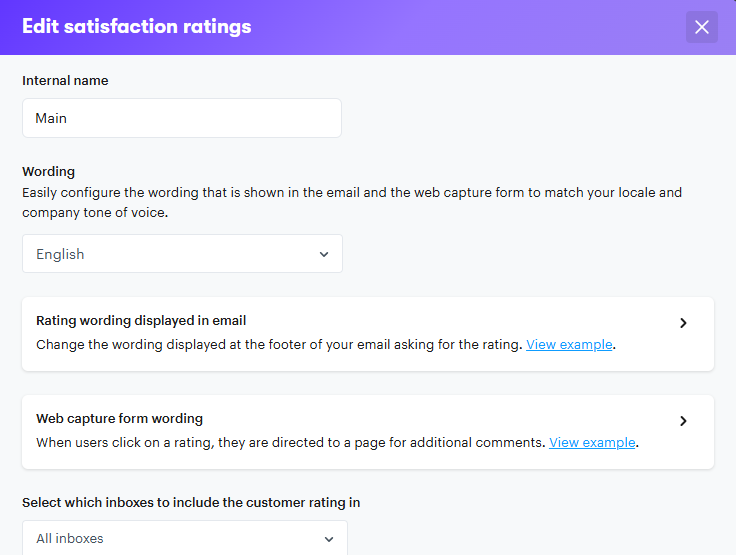
You can track both the percentage of responders and the overall CSAT score:
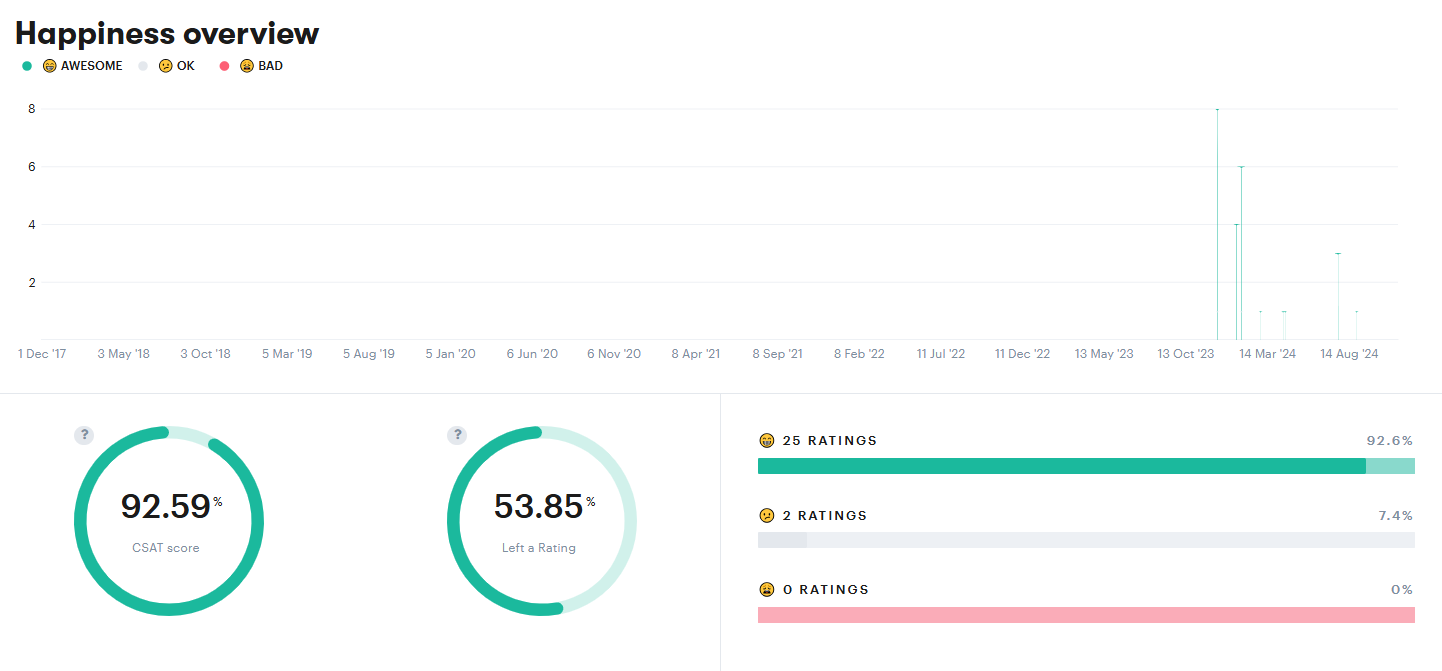
As a bonus, you can also receive update notifications on negative CSAT ratings (so you can promptly address that customer’s concerns).
Productivity Enhancements
Any customer support software should help you improve productivity. It should make it easier to cut down on response times, improve metrics, and reduce churn.
Most email software allows you to optimize your inbox via reminders, scheduling tools, or automation. Help desks tend to prioritize productivity more heavily.
Gmail’s Productivity Features
There are a couple ways to ‘hack’ Gmail for increased productivity. For example, ‘auto-advance’ allows you to immediately jump to the next email:
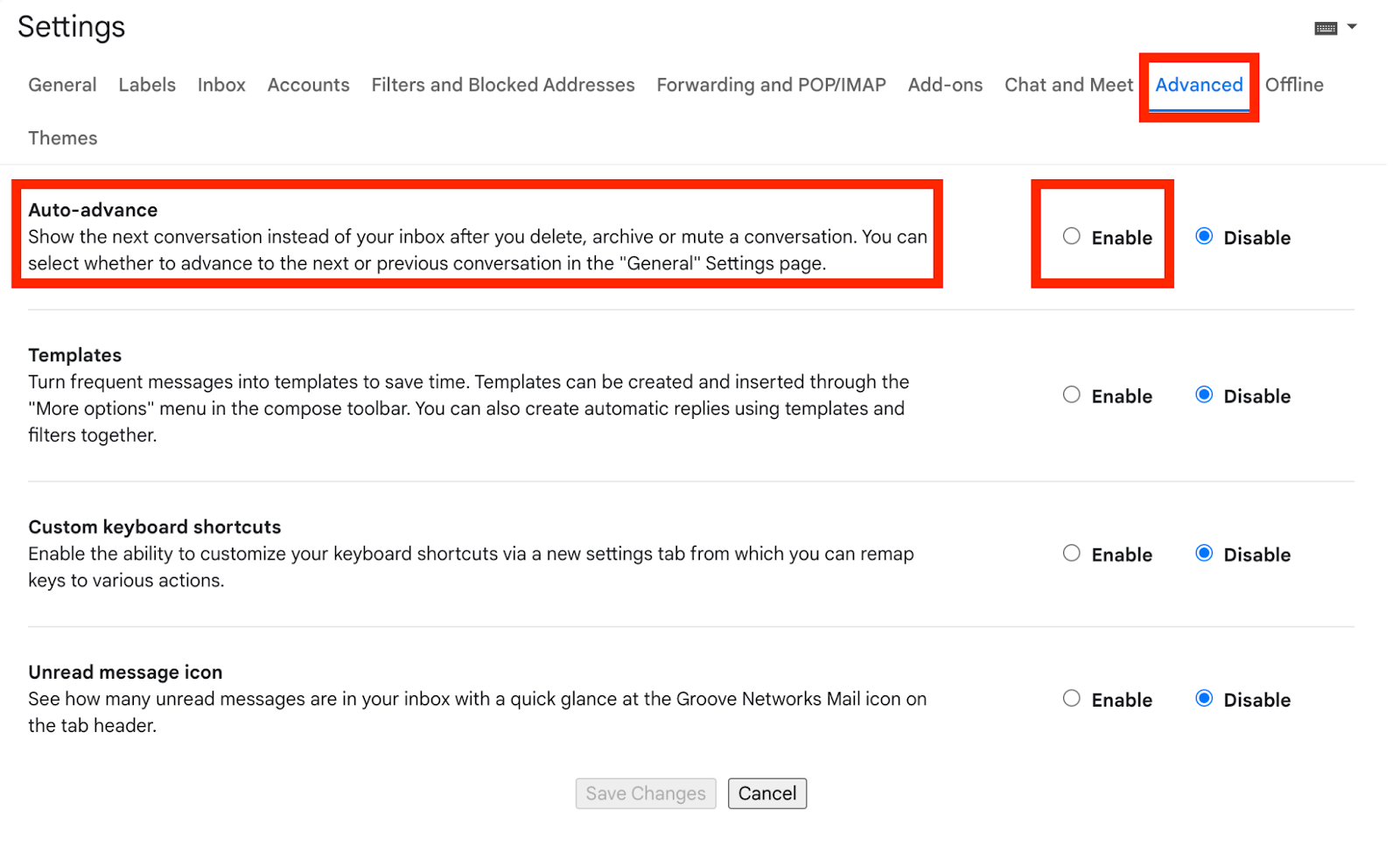
Typically, Gmail takes you directly back to your inbox after you respond to an email. This isn’t very efficient, and those extra seconds add up over the course of a week or month. Auto-advance helps you respond to customers without a transitory lag.
When relying on a traditional email platform, it can be difficult to keep track of email inquiries that require follow-up. We like that there are a number of ways to go about this in Gmail. The one we’ve found the most productive is Google Tasks:
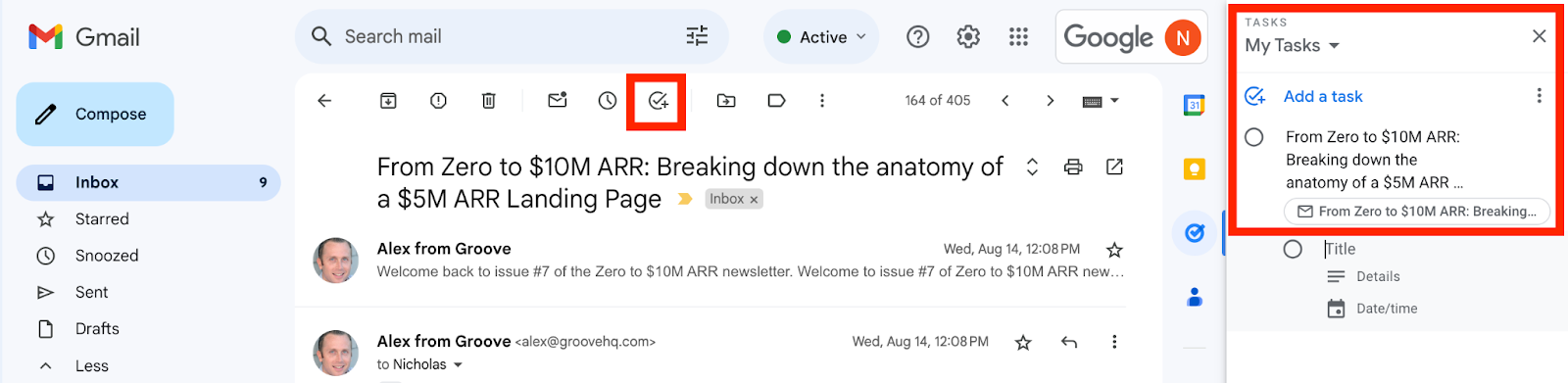
Once you have an email selected, just click on Add to tasks from the top menu, next to Snooze:
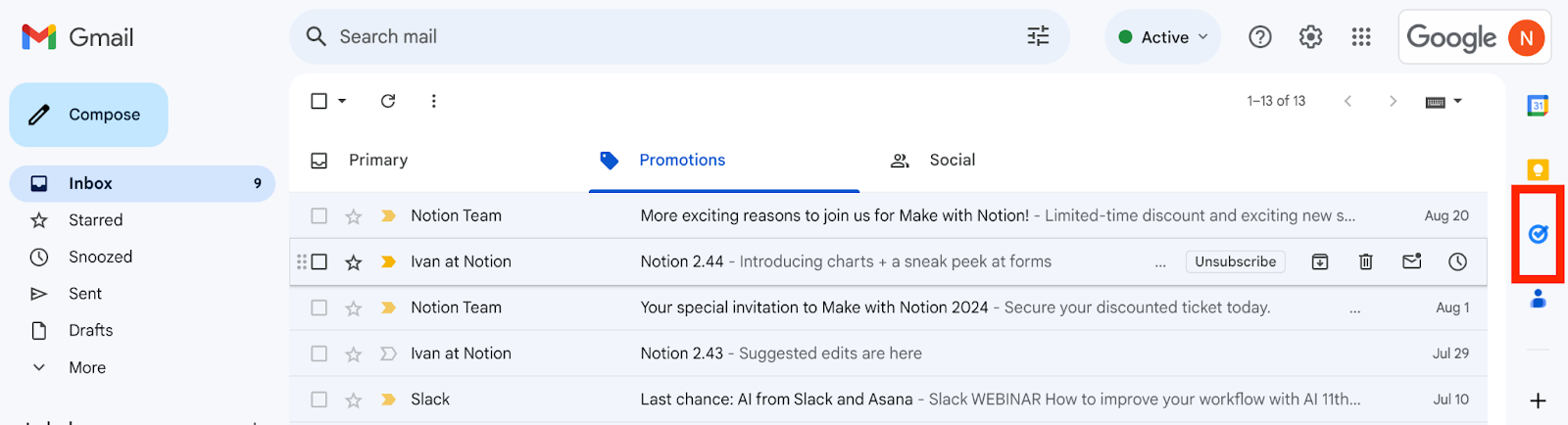
You can set a timeline for when you need to respond back, and view all your pending tasks from the right-hand side of your inbox in just a couple clicks.
Ultimately, Gmail does offer a lot of useful productivity features for small businesses, that are by no means limited to what we mention here. You can also create pre-written email responses, color-code labels to visually identify urgent emails, and add on AI extensions to automate reminder messages.
Outlook’s Productivity Features
Outlook offers a couple features and tools you can use to better manage your time. The main one we’ll look at is the “To-Do List”. This list will be made up of prioritized tasks:
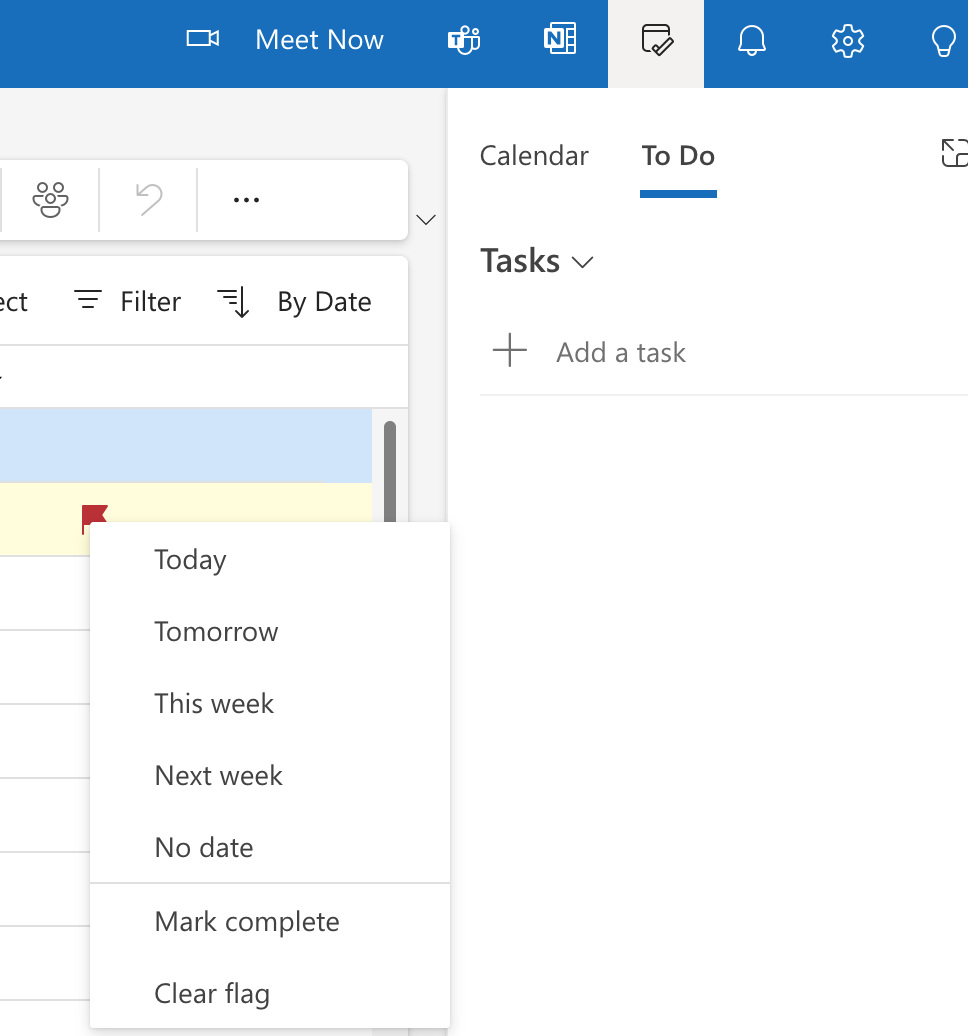
You can turn important emails into tasks by clicking on the red flag icon. You can set a due date for each individual email, or mark them once resolved.
Let’s say you need to schedule a follow-up call with a client, or reach out to an agency to verify contingencies. You can set a reminder on your To-Do List, and integrate it directly into your calendar.
There are a number of other ways you can use Outlook to boost productivity, including:
- Organize emails into groups using folders and subfolders.
- Schedule emails to be sent at a more appropriate time.
- Create and edit categories of folders, color-coded for an easy visual key.
- Send emails to a Microsoft Teams channel to loop in coworkers.
- Create rules to automate processes and filter emails to a specific folder
Groove’s Productivity Features
Groove’s productivity features include rules, automation, AI, and canned responses — all of which help to streamline support and eliminate busywork.
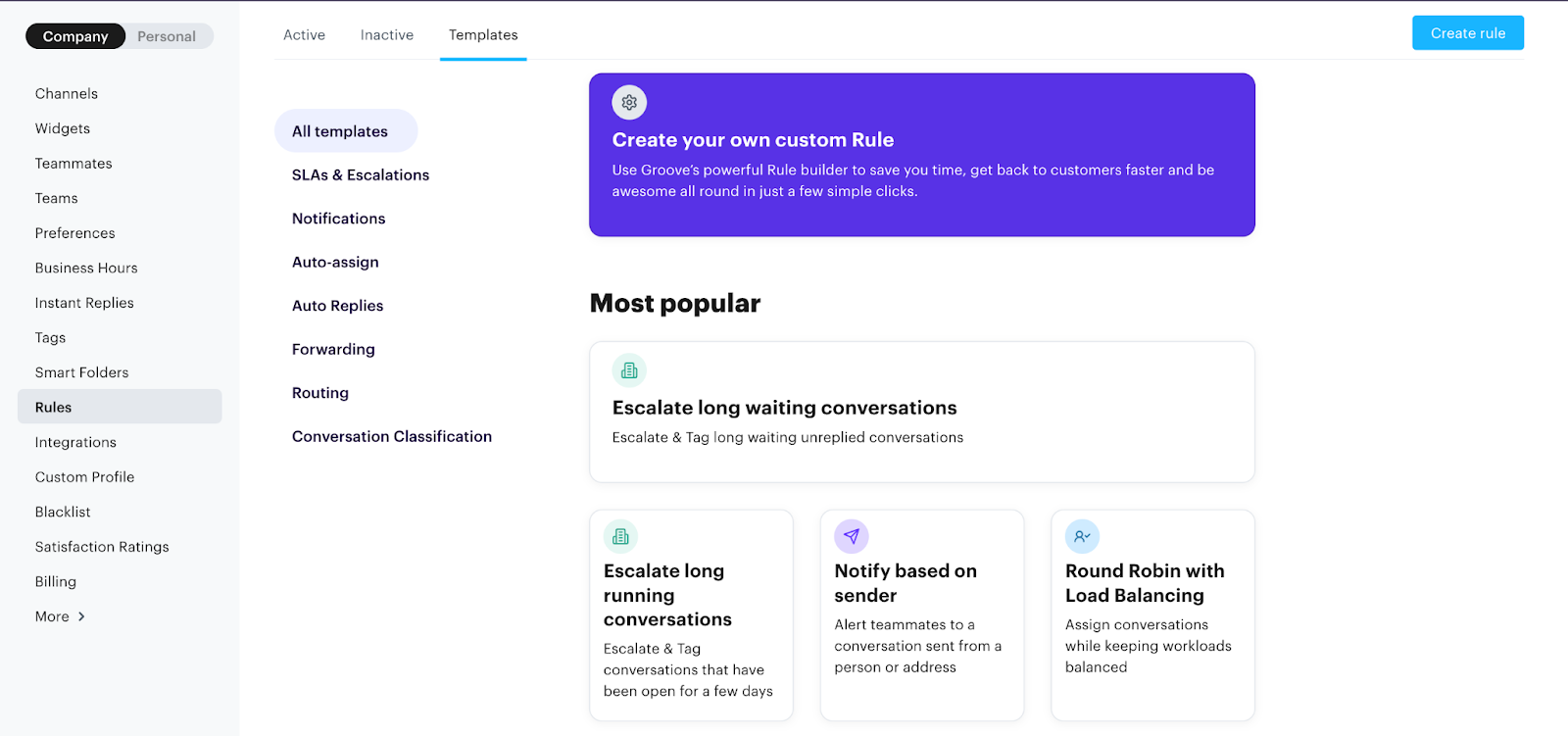
Rules and automation features mean you no longer have to manually read through, sort, and assign each incoming email. You can set up rules and filters to auto-assign emails to specific team members, or filter all messages of a particular type into a specific folder.
Groove’s rule builder also has pre-built templates, so you don’t have to worry about creating your own for common support tasks:
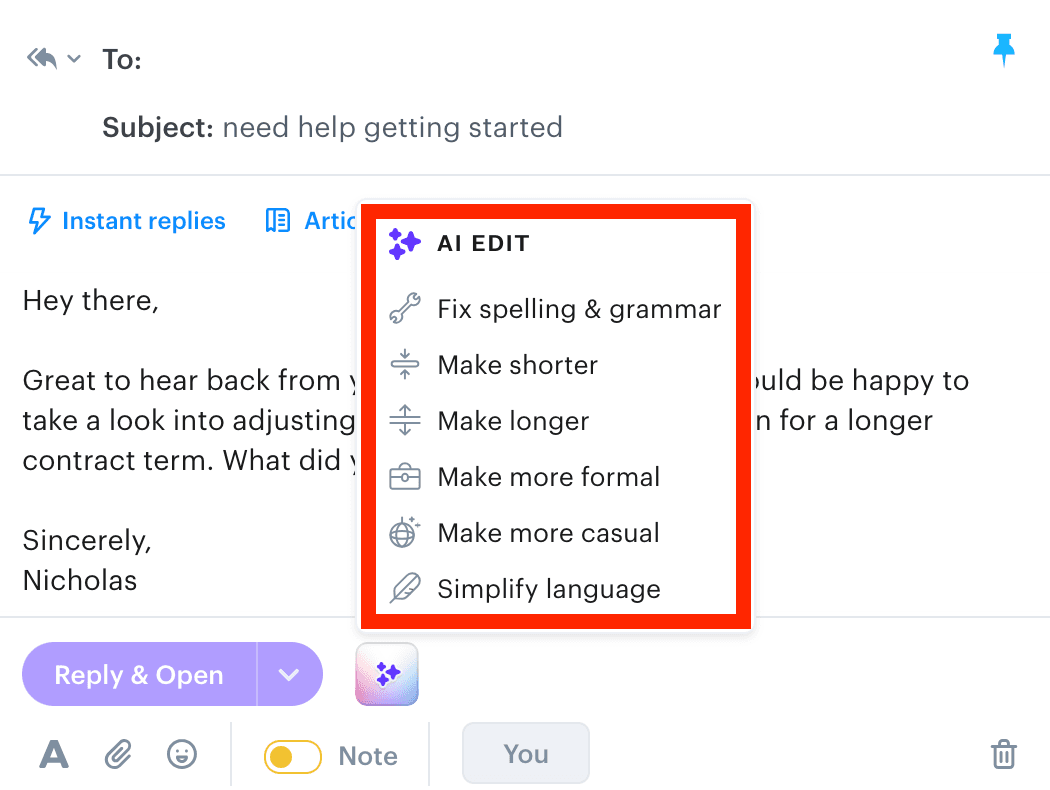
Groove’s AI features include generative text for replicating tone or increasing the length of response. You can leverage sentiment detection to mirror the customer’s emotions for a more context-appropriate reply:
Canned responses (Instant Replies) and responses pulled from the built-in knowledge base keep your team from needing to reply to the same kinds of inquiries over and over again:
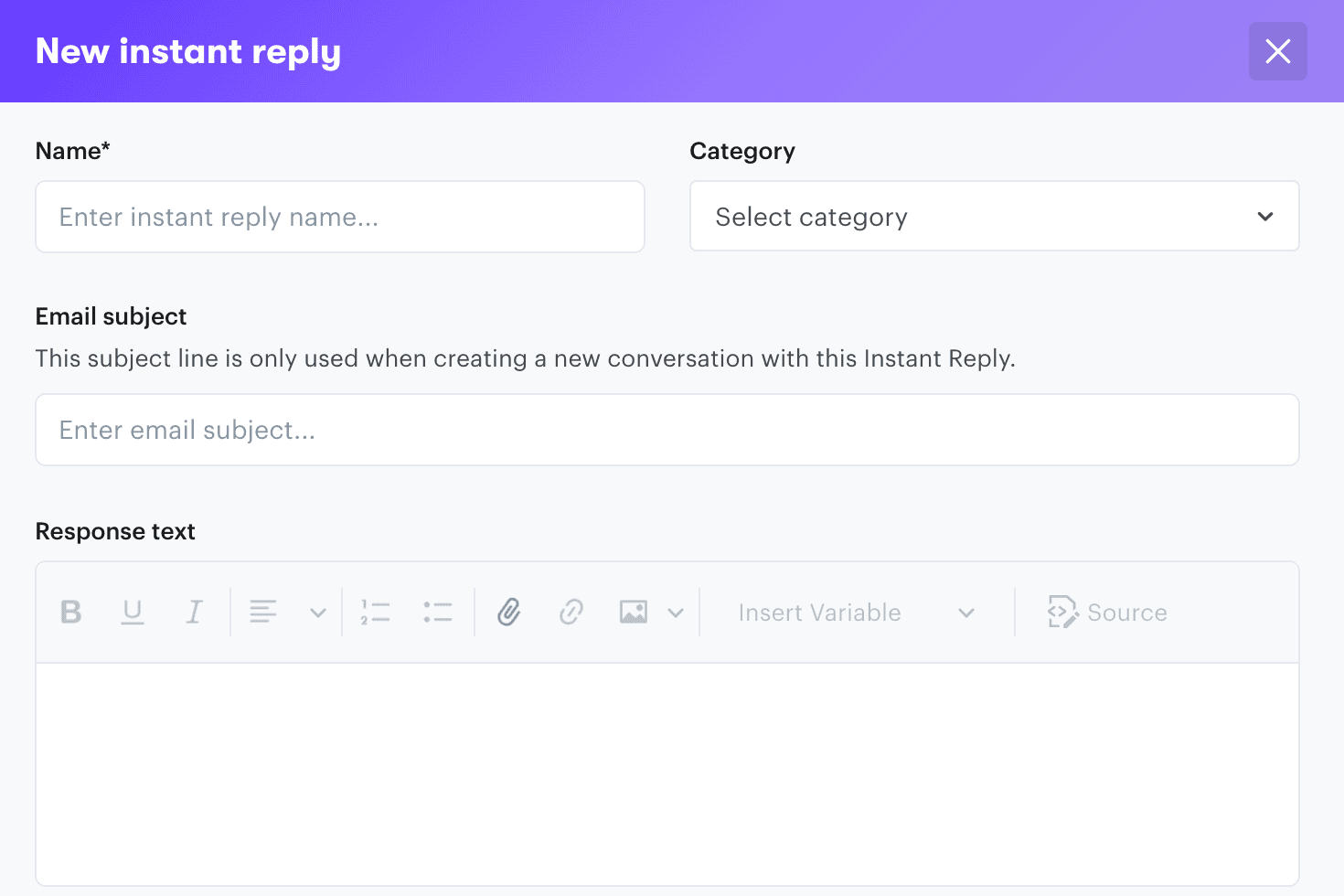
You can simply link customers to self-service resources, input the text pulled from your knowledge base, and create canned responses that can be easily accessed and personalized.
Support Team Collaboration
Collaboration is the foundation of quality customer support. As your team responds to inquiries, they’ll need to consult with coworkers about specific issues.
Maybe they need to message another teammate to help out in a situation they don’t have much experience with. Or they need to communicate with a different department to get a technical issue resolved.
Whatever the case, it’s important that this process is as quick and seamless possible. For example, can you add internal notes for a teammate, so they know to follow up on a specific order that needs a refund? Are you able to work on an email response alongside a teammate?
Let’s see how Gmail vs Outlook vs Groove compare in this key area.
Gmail’s Collaboration Features
Gmail’s primary feature for collaboration is the shared inbox. This is a lot more secure than simply providing one account’s login credentials to multiple team members.
You can create a Google Group to set up a dedicated department email address specifically for customer support. All enabled users will be able to access this shared inbox, and you can assign emails to specific team members:
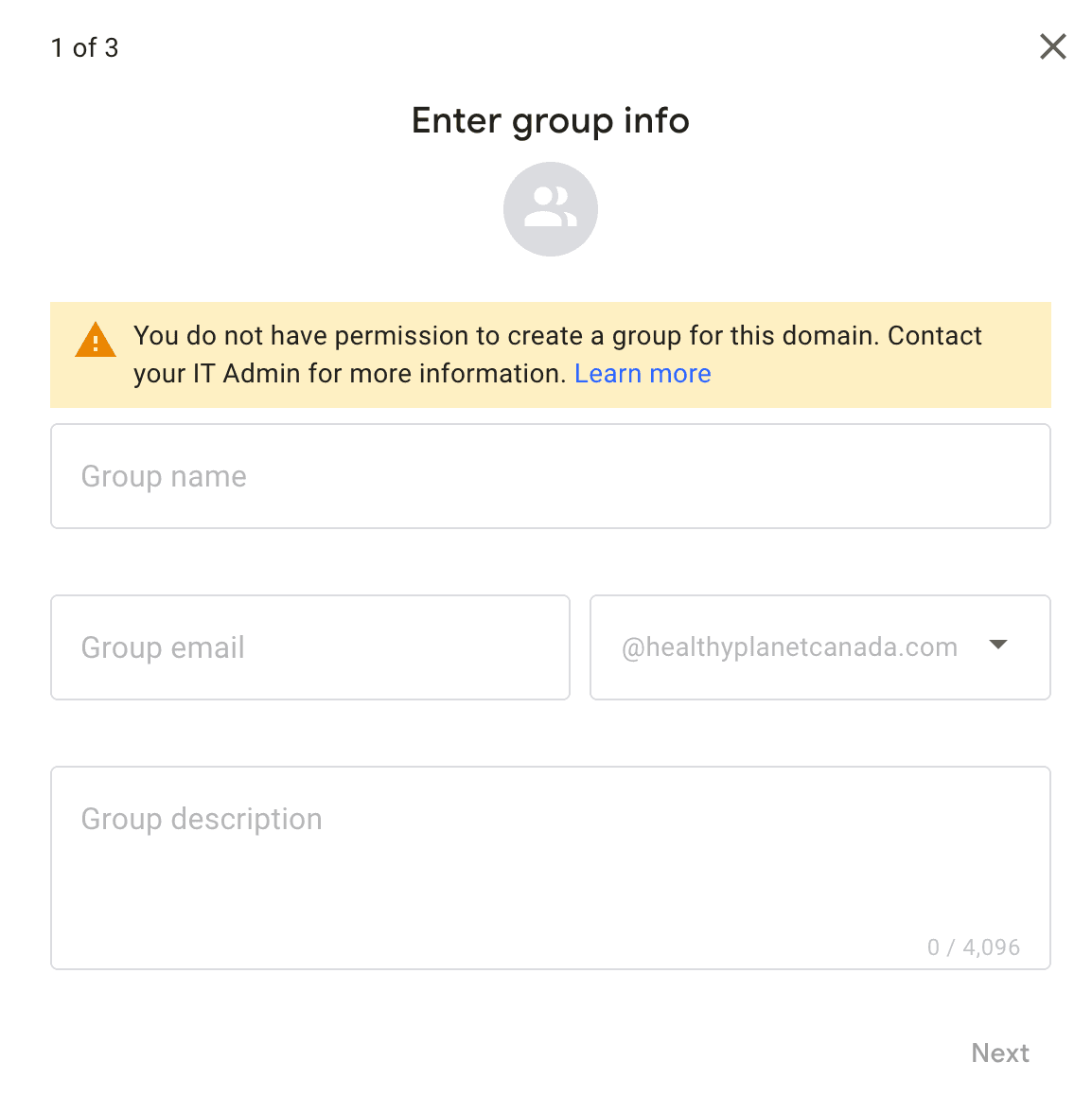
The one downside is that this shared inbox lacks fundamentals like collision detection. You have no way of knowing when another team member is working on the same email as you. Nor will you be able to leave internal notes for them as reminders, since the collaborative features are limited.
Outlook’s Collaboration Features
Outlook allows teammates to collaborate using Microsoft 365 tools. For example, if you need to work on a PowerPoint presentation with coworkers, you’ll do so through what Microsoft dubs ‘co-authoring’.
Provided that the file is stored in OneDrive or SharePoint, you can work on an Excel spreadsheet or Word document with other team members. All co-authors need to have permission enabled to access, edit, and save the document changes.
There are two options for email collaboration specifically: delegation or setting up a shared mailbox:
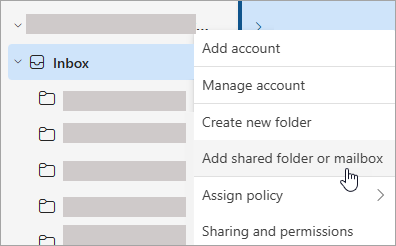
The shared mailbox is most useful for customer support. It lets your team send and monitor emails collectively from a group address. Whenever a person responds to an email from the shared inbox, it will send from the shared address, rather than the individual user account.
Delegation lets you assign another team member access to your account. You can tailor delegation permissions to suit your business’ needs — set control levels to limit access to reading or creating emails.
Groove’s Collaboration Features
As a help desk, Groove is built from the ground up to enhance collaboration for your support team.
Traditional email makes it difficult to reply to customer inquiries as a team, especially when you don’t know who is responding to what. Multiple replies to the same inquiry happen. Time gets wasted.
With Groove, you have a real-time view of the conversations your teammates are having with customers. Collision detection displays the name and icon of the teammate currently working on an email:
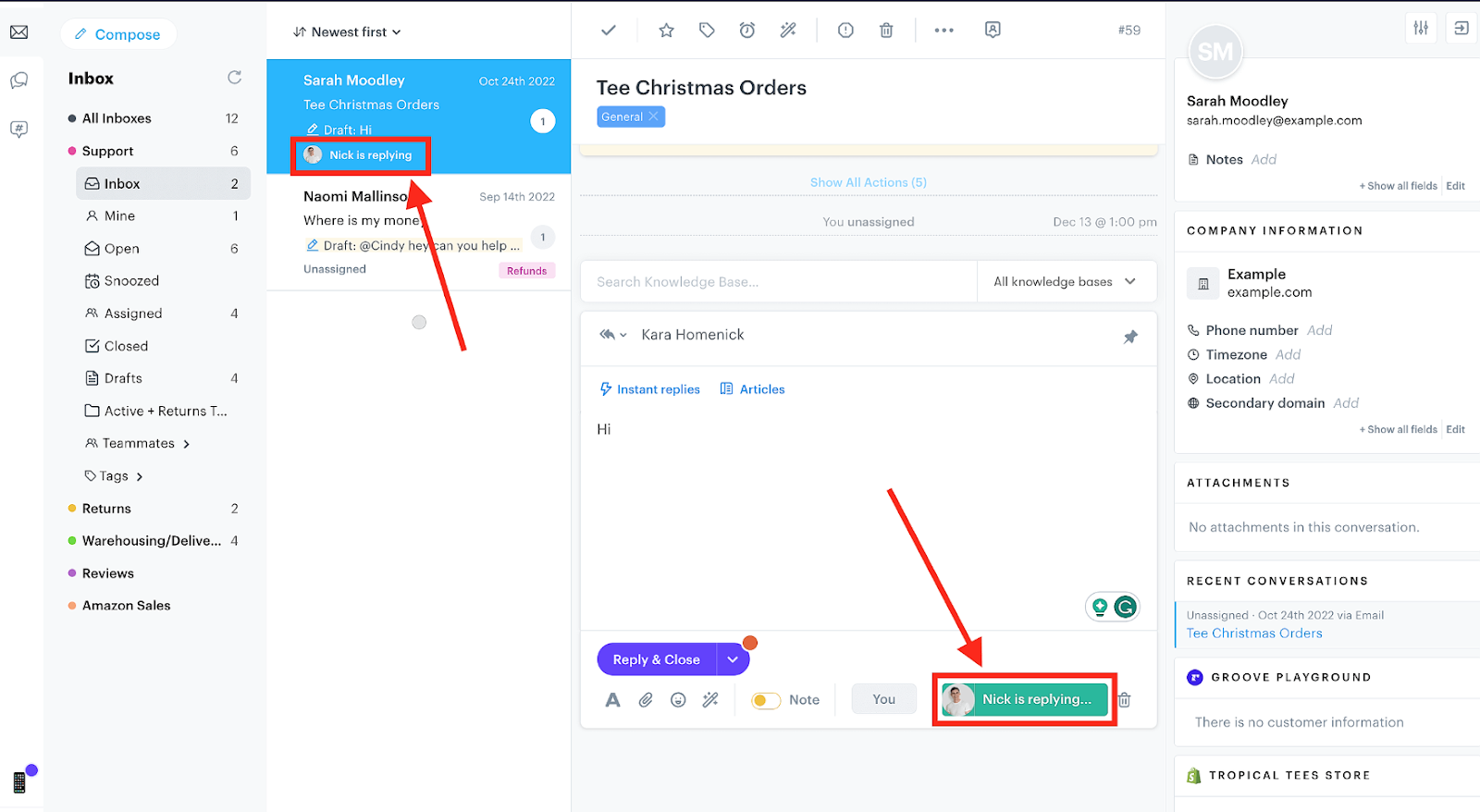
This appears in both the conversation/ticket list view, and within the body of the conversation page (where you respond).
If you need to assign a ticket to a specific coworker, you can do this manually. Or you can do it automatically, by building a rule based on set identifiers. For example, all emails related to technical support can be routed to a specific teammate with the necessary expertise.
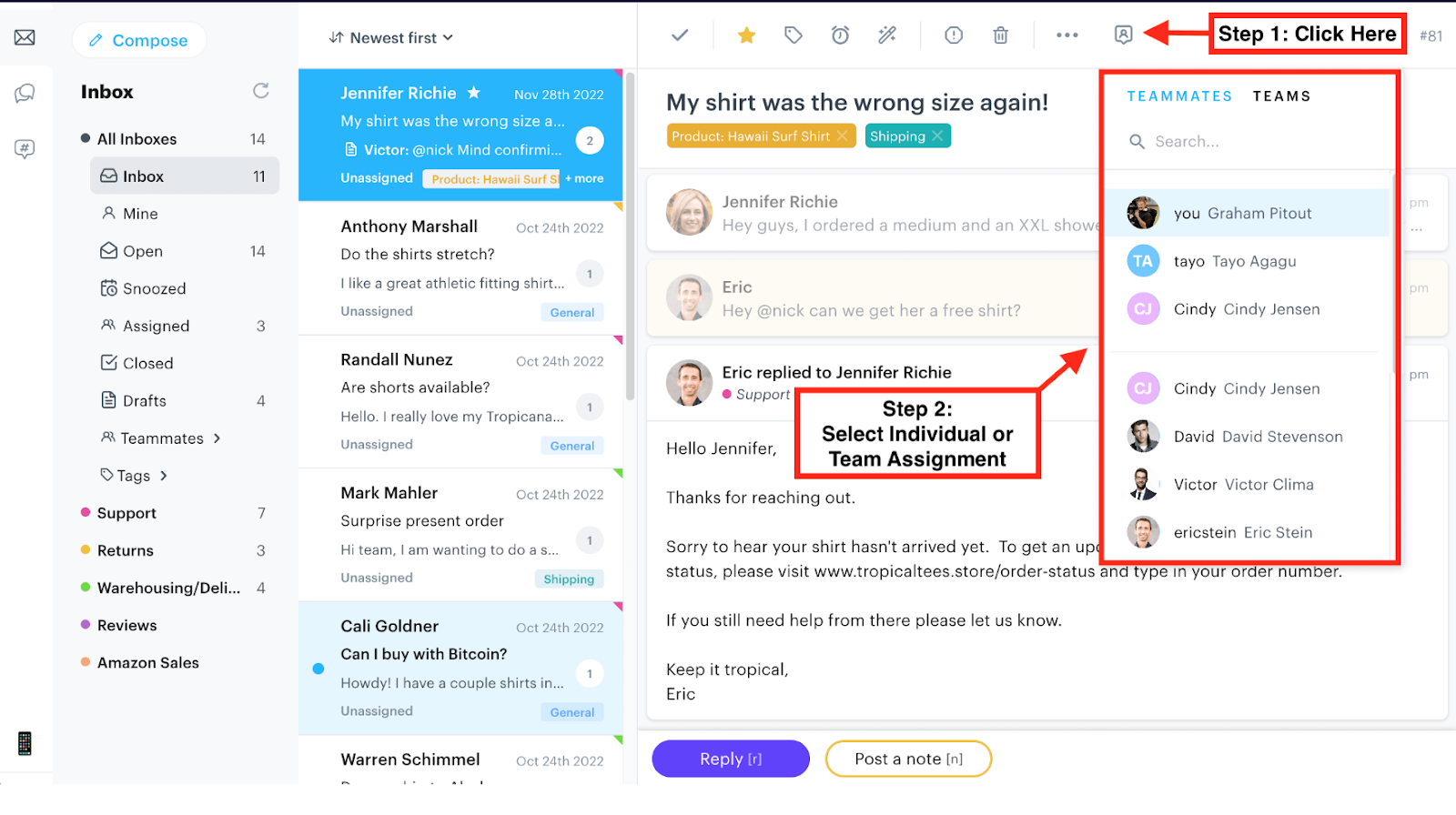
Internal notes and @mentions are also handy for collaboration on customer concerns. These comments are only visible to other members of your support team. You can leave questions for a member in another department, set reminders, or pull in a teammate to assist.
Let’s say a customer reports a technical issue with the checkout page on your website. You can add an internal note using an @mention, linking them in to address the issue. Once they’ve provided a solution, you can respond to the customer:
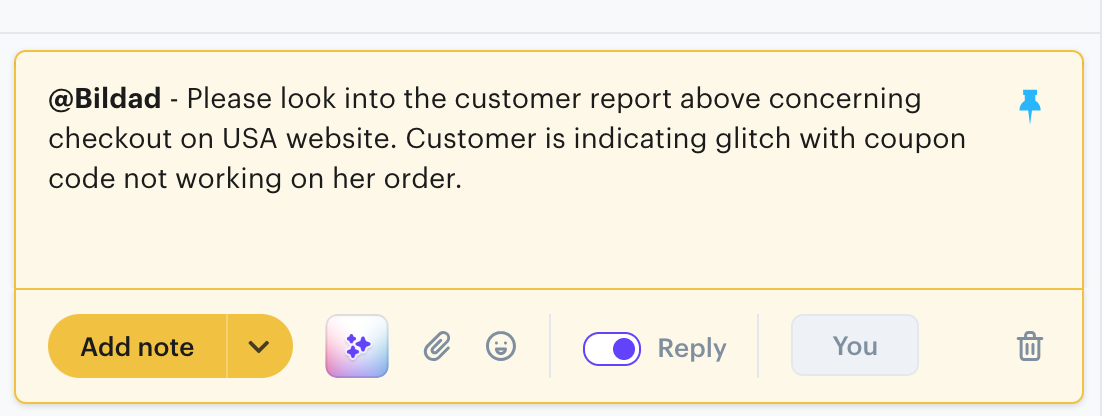
Internal notes are easy to spot in Groove, thanks to the yellow background. They’ll appear in chronological order, after the most recent reply.
Gmail vs Outlook vs Groove: How To Choose the Right Customer Support Solution for Your Business
When it comes to choosing the best tool for your business, there isn’t one correct choice for everyone.
Gmail and Outlook both offer free versions, with paid plans incorporated into Google Workspace (for Gmail) and Microsoft 365 (for Outlook). Both are fairly affordable, and a solid starting point for entrepreneurs and freelancers.
On the other hand, as we’ve seen there will be features missing from these platforms. They have a very general focus. After all, they’re intended to be used by billions of people for everyday communication — from scheduling work meetings to checking Facebook status updates from your aunt.
Let’s sum up the advantages and drawbacks of Gmail vs Outlook vs Groove for customer support.
Gmail
Pros:
- Gmail has the cleanest UI out of all the major email providers.
- There are ways to create a shared inbox in Gmail for collaboration, and assign conversations to specific teammates.
- Groups is an easy and affordable way for a business to set up a dedicated support email without paying for additional seats.
Cons:
- While collaboration features exist through the use of a shared inbox, they’re limited and restricting for teams with multiple support agents.
- There’s no truly customizable prioritization system. You have to rely on Gmail’s algorithms to guess what emails are important or fall under certain categories.
- Emails have to be assigned manually. Overall, there’s a lack of automation for saving time and eliminating busywork.
- Gmail lacks proper reporting tools. You won’t be able to easily uncover customer insights without a third-party solution.
Recommended Use Case
Small businesses with a minimal customer base and a single support agent, that need a low-cost (or free) starting point.
Outlook
Pros:
- Outlook allows you to open and use a shared mailbox across teammates for collaboration on documents or emails.
- You can create a branded business email address by adding a domain or purchasing one.
- Integration with 365 tools like Bookings enable customers to schedule meetings directly into your calendar.
Cons:
- Collaboration tools aren’t geared towards resolving email inquiries, but are instead focused on file sharing, document creation, and video presentations.
- The interface is more cumbersome and cluttered than Gmail or Groove, and less likely to feel intuitive.
- There’s a steeper learning curve. Advanced setup beyond the basics requires a decent time investment.
- To get the most out of Outlook, you’ll need to invest heavily in the Microsoft 365 ecosystem.
Recommended Use Case
Outlook is a reasonable choice for entrepreneurs, freelancers, and niche industries (bio-medical, real estate) that don’t require extensive customer support. It’s also the natural choice for businesses that are already integrated into the Microsoft 365 platform, or want to use those other tools.
Groove
Pros:
- Groove’s shared inbox feels exactly like using traditional email. It’s easy to jump in, navigate, and access everything you need when responding to customer inquiries.
- Along with email, you can connect your business’ Facebook, Instagram, phone line, or live chat widget to enable omnichannel support.
- You get access to a wide variety of organizational and productivity features: internal notes for private communication, round robin ticket assignment, collision detection, canned responses, customer profiles, tags and smart folders, etc.
- Customizable rules enable you to automate key workflows and save time.
- The clear and concise Reports dashboard gives you insight into key support metrics.
- There are dozens of integrations with other popular business tools, with endless possibilities via API or Zapier.
Cons:
- Not as easy to fold into the Google or Microsoft ecosystems.
- Missing some features available in Gmail and Outlook that are nice to have on a personal level, but aren’t specific to customer support.
- Requires a monthly fee, unlike the free versions of Gmail or Outlook (although we have a free trial and three affordable tiers).
Recommended Use Case
Small businesses that are familiar with Gmail and/or Outlook, but are looking to upgrade their customer support. It’s ideal if you want something accessible with a low barrier to entry, yet packed with useful organization, integration, and automation features.
Making the Most of Customer Support with Gmail or Outlook and Groove!
It’s worth noting that both Gmail and Outlook integrate with Groove. After all, you’ll still need a standard mailbox set up to funnel emails into your help desk. Groove isn’t really a replacement for Gmail or Outlook. It’s an enhancement.
Differences between email providers tend to be minimal, and which is ‘best’ tends to come down to personal preference. Some businesses prefer the customization-rich options of Outlook. Others prefer Gmail’s simplicity and ease of use.
But both are much better with Groove! Ready to leave behind email inboxes that aren’t built for customer support? Check out a free trial of Groove, and experience the difference for yourself.
5 Help Scout Alternatives: Why Growing Support Teams Switch to Groove
Groove Fixes What Teams Don't Like About Help Scout: Flat Pricing, Built-In AI, and Native SLA Management. See the Full Comparison.
How Helply's Hallucination-Proof AI Eliminates the #1 Fear of AI Customer Support
Customer Support Automation That Hits 65% AI Resolution, Guaranteed. Helply's Action-Based AI, Safe Escalations, and Optimization.